Table of Contents
- Introduction The 5MB Smartphone Photo That Killed Your Rankings
- Why Google Hates Your Beautiful High-Resolution Photos
- Stop Naming Your Files IMG_9942.JPG and Other Basic Sins
- Alt Text is Not Just a Place to Stuff Keywords
- Shrink Your Images Before They Shrink Your Profit Margins
- Technical Image SEO for Business Owners Who Hate Code
- Advanced Tactics to Steal Traffic from Lazy Competitors
- The Only WordPress Image Plugins Actually Worth Your Money
- Frequently Asked Questions About WordPress Image SEO
Key Takeaways
- Stop uploading massive, raw photos from your smartphone directly to WordPress, as this destroys your Core Web Vitals and drives away impatient customers.
- Rename your files with descriptive, hyphen-separated keywords and use modern formats like WebP to dramatically reduce file sizes without sacrificing visual quality.
- Write alt text for human accessibility first and search engines second, ditching the toxic habit of keyword stuffing.
- Implement responsive images, Content Delivery Networks (CDNs), and schema markup to transform your visual assets into high-converting traffic drivers.
- Avoid duplicate content disasters by aggressively disabling default WordPress attachment pages and cleaning up your media library with automated plugins.
Introduction The 5MB Smartphone Photo That Killed Your Rankings
We need to have a serious conversation about that massive, unedited 5MB smartphone photo currently choking your website’s homepage to death. You snapped a beautiful picture of your storefront, thought it looked stunning on your iPhone, and immediately dumped it straight into your WordPress media library without a second thought. Now, your server is struggling to breathe, mobile users are rage-quitting your site before the header even loads, and Google’s algorithm is actively pushing your pages down the search engine results pages. Treating your web hosting like a limitless hard drive is the fastest way to commit digital sabotage against your own business.
Image SEO is not some trivial IT afterthought or a box to blindly check off before publishing a blog post; it is a critical revenue driver that dictates how the modern web functions. Every megabyte of bloated media you serve actively strips cash out of your pocket by bleeding your conversion rates. When images are meticulously optimized, they act as silent salespeople, indexing properly in visual search engines, keeping users engaged, and signaling to Google that your site is a high-performance, well-oiled machine. When they are ignored, they become digital lead weights tied to the ankles of your entire marketing strategy.
This guide is your 2000-word journey from basic, rudimentary file naming conventions to advanced, cutthroat technical implementations. We are going to strip away the marketing fluff and focus strictly on what moves the needle for WordPress websites. You will learn how to shrink massive files without ruining their quality, how to feed Google exactly the context it craves, and how to stop your website from doing the heavy lifting that browsers should be doing. By the end of this deep dive, you will have a bulletproof strategy to outrank lazy competitors who still think ‘IMG_0042.jpg’ is an acceptable file name.
Why Google Hates Your Beautiful High-Resolution Photos
The brutal truth about Core Web Vitals and load times
Google doesn’t care how breathtaking your professional photography is if it takes eight seconds to render on a 4G connection. The search giant’s introduction of Core Web Vitals transformed site speed from a polite suggestion into a heavy-handed ranking mandate. When you upload a massive image file, you directly impact the Largest Contentful Paint (LCP) metric, which measures how long it takes for the largest visual element on the screen to become visible. If your hero image takes forever to load, your LCP score plummets, and Google interprets your site as providing a hostile user experience.
This performance degradation triggers Google’s ranking wrath because search engines are ultimately in the business of serving high-quality, frictionless answers to users. If a user clicks your link and ends up staring at a blank screen while your 12-megapixel photograph slowly renders line by line, Google’s algorithm marks your site as a liability. It is one of the most common technical SEO issues secretly sabotaging your site speed and undoing all the hard work you put into your content.
The fix requires a fundamental shift in how you view visual assets on your website. High resolution does not inherently mean high value, especially in a digital ecosystem where the majority of your traffic is viewing your site on a six-inch screen. Balancing pristine visual quality with aggressive performance metrics is the hallmark of modern technical SEO. You have to learn how to appease the algorithm’s insatiable need for speed without leaving your website looking like a pixelated mess from 1999.
How bloated images actively drive customers to competitors
Slow load times do not just annoy Google; they actively drive your impatient mobile customers directly into the waiting arms of your fastest competitors. Consumer patience is at an all-time low. Research continuously shows that if a page takes longer than three seconds to load, over half of mobile visitors will abandon the site immediately. Every unoptimized image acts as a psychological speed bump, frustrating potential buyers and silently convincing them that your business is amateurish or untrustworthy.

This poor user experience translates directly into lost sales and decreased business revenue. When visitors bounce rapidly from your slow-loading page, they send a negative user signal back to Google, reinforcing the algorithm’s belief that your site is irrelevant or broken. You are effectively paying for traffic through SEO or ads, only to slam the door in the customer’s face because your server is trying to download a billboard-sized photo for a thumbnail-sized space.
Competitors who understand image optimization are actively stealing this frustrated traffic. They have streamlined their visual assets, meaning their pages load instantaneously, their content is immediately readable, and their calls to action are clickable before your site even registers a first paint. By refusing to optimize your images, you are subsidizing your competitor’s conversion rates with your own hard-earned traffic.
The hidden traffic goldmine inside Google Images
Many website owners treat Google Images as a complete afterthought, entirely missing the untapped traffic potential waiting inside properly optimized media assets. Google Images is not just an image repository; it acts as a massive secondary search engine responsible for over 20% of all web searches. For visual niches like e-commerce, local businesses, real estate, and digital agencies, dominating image search can generate a staggering amount of highly qualified, intent-driven traffic.
When consumers are in the discovery phase of a purchase, they rarely want to read a wall of text; they want to see the product, the service, or the result. A properly optimized image that ranks on the first page of Google Images can serve as a primary gateway to your website. If someone searches for a specific type of office setup or a specialized medical treatment, and your high-quality, properly tagged image shows up first, that click leads directly to your sales funnel.
Unlocking this traffic goldmine requires shifting your perspective. Every single image on your WordPress site must be treated as an individual landing page capable of capturing organic search traffic. By ignoring image SEO, you are essentially leaving money on the table and blinding your business to a massive subset of users who prefer to search visually before committing to a text-based search result.
Stop Naming Your Files IMG_9942.JPG and Other Basic Sins
The psychology and SEO of descriptive file names
Before you even upload a file to WordPress, the name you give that file sets the foundational context for search engines. Search engines rely heavily on hyphens and relevant keywords within the file name to understand what the image actually depicts. If you upload a file named ‘IMG_9942.JPG’, you are effectively telling Google’s crawlers absolutely nothing about the visual content. A search engine cannot reliably ‘see’ the image the way a human does, so it leans on your file naming conventions as the first clue to relevance.
There is a strict psychology and syntax to naming files correctly for SEO. You must use hyphens to separate words because search engines read hyphens as spaces; conversely, they read underscores as word joiners. If you name a file ‘blue_running_shoes.jpg’, Google reads it as ‘bluerunningshoes’, which dilutes the keyword relevance. Auto-generated gibberish from digital cameras is a missed opportunity to rank for highly specific, long-tail search queries.
Taking the time to rename files to reflect their content—such as ‘mens-blue-trail-running-shoes.jpg’—provides immediate, semantic value. This descriptive strategy not only helps the image rank in visual search but also adds thematic relevance to the surrounding text on your webpage. It is the absolute easiest, zero-cost SEO win you can achieve, yet the vast majority of website owners are too lazy to implement it.
JPEG vs PNG vs WebP and why WebP usually wins
Choosing the correct image format is a controversial battleground among web designers, but from a purely SEO and performance standpoint, the debate is largely settled. Historically, JPEG was the king of photographs because of its acceptable compression, while PNG dominated graphics and transparent images due to its lossless quality. However, utilizing heavy PNGs for standard website imagery is a massive blunder that inflates page size unnecessarily.
Today, Google aggressively pushes the WebP format for superior image quality and tiny file sizes. According to official WebP documentation from Google, WebP lossless images are 26% smaller in size compared to PNGs, and WebP lossy images are 25-34% smaller than comparable JPEG images. This format was literally invented by Google to make the web faster, which means Google’s search algorithms naturally favor websites that adopt it to improve page load speeds.
Transitioning your WordPress site to utilize WebP is no longer a futuristic tactic; it is a baseline requirement. Modern browsers universally support WebP, and WordPress natively handles WebP uploads without requiring complex workarounds. By stubbornly sticking to legacy formats like heavy PNGs for non-transparent photos, you are unnecessarily taxing your server and willfully ignoring a format specifically engineered to boost your SEO performance.
Defining exact dimensions so browsers stop guessing
One of the most insidious technical sins you can commit is forcing a user’s web browser to guess how large an image should be before the page fully renders. When you upload an image without defining its exact width and height attributes in the HTML code, the browser has to pause its rendering process, download the image, figure out its dimensions, and then forcefully push surrounding text and elements out of the way. This chaotic process causes severe layout shifts, ruining the user experience.
Setting precise width and height dimensions prevents this jarring layout shift from happening. Google measures this instability via the Cumulative Layout Shift (CLS) metric, which is a massive component of Core Web Vitals. If a user is about to click a button on your site, and an un-dimensioned image suddenly loads and pushes the button down, causing them to click an ad instead, Google penalizes you for a frustrating user experience.
Furthermore, forcing a mobile browser to download a 3000-pixel wide image only to resize it on the fly to fit a 400-pixel smartphone screen is a massive waste of computational resources. The SEO penalty here is twofold: you are ruining the page stability metric (CLS) while simultaneously destroying the page speed metric (LCP). Defining exact dimensions ensures the browser reserves the correct amount of space instantly, making your site feel infinitely faster and more stable.
Alt Text is Not Just a Place to Stuff Keywords
Writing alt text for blind users and blind search bots
The most controversial misunderstanding in image SEO is the true purpose of alternative text (alt text). For years, shady SEO practitioners treated the alt text attribute as a digital dumpster where they could invisibly stuff exact-match keywords to manipulate rankings. This outdated tactic is not only ineffective today, but it actively harms your website. Accessibility and SEO actually share the exact same goal when it comes to images: providing highly accurate, descriptive context for those who cannot see the screen.
When you write alt text, you are writing for two primary audiences: visually impaired users relying on screen readers, and blind search engine bots trying to parse your content. According to guidelines from the W3C Web Accessibility Initiative, alt text must convey the ‘why’ and ‘what’ of an image comprehensively. If your alt text successfully paints a clear, vivid picture for a human using a screen reader, it will naturally contain the semantic keywords that Google’s algorithm needs to index the image appropriately.
Treating alt text purely as an SEO loophole violates fundamental web accessibility standards. Modern search algorithms have grown incredibly sophisticated through machine learning; they can easily detect and penalize keyword stuffing. Instead of gaming the system, write naturally. Describe the image as if you were explaining it over a telephone to a friend. This creates a highly relevant, accessible experience that Google rewards with higher rankings.
Real-world examples of terrible versus perfect alt attributes
To truly understand the difference between garbage and perfection, we must examine side-by-side comparisons of alt text implementation. Imagine you are running a sporting goods store and you have a photograph of a woman running on a dirt trail wearing your latest brand of sneakers. A lazy, keyword-stuffed alt text attempt would look like this: `alt=”running shoes, best running shoes, buy sneakers online cheap”`. This provides zero descriptive value to a visually impaired user and screams ‘spam’ to a search engine.
A perfectly optimized, conversion-focused alt text for that exact same image would be: `alt=”A woman trail running through a dense forest wearing blue Nike Pegasus 39 sneakers”`. Notice the difference? The perfect example is highly descriptive, naturally incorporates the product name, defines the action, and sets the scene. It serves the screen reader flawlessly while giving Google exact, long-tail context for highly specific visual search queries.
The context changes depending on the image’s purpose. For e-commerce product images, precision about color, model, and brand is paramount. For decorative blog graphics or abstract vector art, the alt text should be much shorter or, if entirely decorative, left intentionally blank (`alt=””`) so screen readers skip it. Understanding when to be hyper-descriptive and when to step back is the hallmark of a seasoned SEO professional.
The crucial difference between alt text and title text
Many WordPress users conflate the ‘Alt Text’ box with the ‘Title Text’ box in the media library, resulting in disastrous technical implementation. Let’s clarify this immediately: alt text is absolutely mandatory for SEO and accessibility, while title text is largely optional and provides almost zero direct SEO value. The alt text lives in the HTML as `` and is the primary fallback text if the image fails to load or is read by an accessibility device.
Title text, on the other hand, exists as `` and is purely an interface enhancement. It is the text that creates a small tooltip popup when a user hovers their mouse cursor over an image on a desktop computer. While this can provide a nice user experience by adding a quirky caption or extra context, search engine crawlers fundamentally ignore the title attribute when determining what an image is about or how it should rank.
Do not waste your time copying and pasting your carefully crafted alt text into the title text field under the mistaken belief that it doubles your SEO power. It doesn’t. Spend 100% of your optimization energy crafting the perfect alt text description. Leave the title attribute blank unless you specifically want a tooltip to appear for desktop users. Misunderstanding this distinction leads to wasted hours and zero return on investment.
Shrink Your Images Before They Shrink Your Profit Margins
Lossy versus lossless compression techniques explained simply
When it comes to crushing image file sizes, you have to choose your poison: lossy or lossless compression. This choice is often controversial among photographers and designers who demand pixel-perfect accuracy, but for a business owner focused on SEO, the decision dictates how fast your site will load. Lossless compression mathematically shrinks the file size without removing a single pixel of data. It is perfectly safe, maintains 100% of the original quality, but unfortunately, only yields minor reductions in file size.
Lossy compression, on the other hand, is an aggressive, destructive process. It permanently discards microscopic amounts of color data and pixel information that the human eye can barely perceive. By sacrificing a microscopic fraction of visual fidelity, lossy compression can reduce a 2MB image down to a lightning-fast 150KB file. For the vast majority of small business owners, e-commerce sites, and blogs, lossy compression is the indisputable champion.
You must advise your web team to accept slight, imperceptible quality loss in exchange for massive performance gains. Unless you are running a high-end photography portfolio where absolute pristine clarity is the sole product, your users will never notice that an image was compressed at 85% quality instead of 100%. What they will notice is a website that loads instantly and allows them to navigate without friction.
Exact sizing rules for headers, blogs, and product galleries
Uploading a 4000-pixel wide image into a blog post container that is only 800 pixels wide is the digital equivalent of wearing clown shoes to a marathon. It is inefficient, awkward, and slows you down immensely. Before you even run an image through a compression tool, you must physically resize its dimensions to match the maximum width it will be displayed at on your WordPress site. Failing to do this forces the browser to download the massive file and shrink it via CSS, destroying your load times.
You need hard numbers. For massive, full-width hero header images, you should never exceed a width of 1920 pixels, and you should crop the height aggressively. For standard blog posts with a sidebar, images rarely need to be wider than 800 to 1200 pixels. For e-commerce product gallery thumbnails, 600 to 800 pixels is usually more than enough. If you are going through a redesign, ignoring these sizing rules is exactly why your e-commerce redesign is an SEO time bomb.
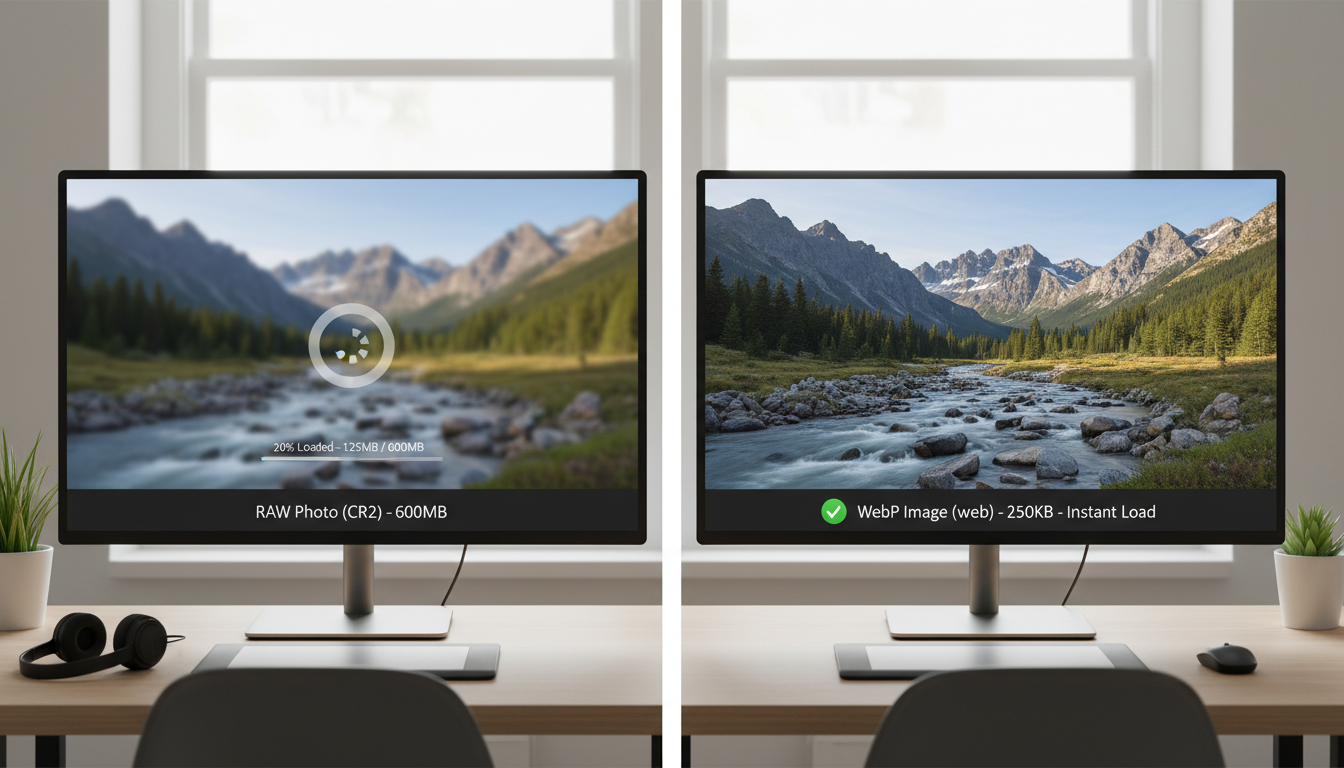
Create a strict standard operating procedure for your content team. No image goes into the media library until it has been physically resized to these exact specifications. WordPress does generate smaller thumbnails automatically, but keeping the original, uploaded source file as lean as possible ensures your server storage doesn’t bloat and prevents massive source files from accidentally being inserted into your pages.
The absolute best compression tools that do the heavy lifting
Knowing that you need to compress images is one thing; utilizing the right software to do the heavy lifting is another. You should never rely solely on Photoshop’s ‘Save for Web’ feature, as dedicated compression algorithms are vastly superior. Top-tier tools like TinyPNG and ImageOptim provide flawless client-side and server-side compression, utilizing advanced lossy techniques to strip away unnecessary metadata, color profiles, and redundant pixels before the file ever touches your WordPress database.
There is a crucial workflow difference between compressing images before uploading them versus optimizing them inside WordPress via a plugin. Compressing them before upload via a web app like TinyPNG ensures that the absolute lightest version of the file enters your server ecosystem. It prevents your hosting environment from doing the CPU-intensive work of crunching pixels, which is vital if you are on a cheap, shared hosting plan that might time out during heavy processing.
However, for high-volume sites, manually running every image through a third-party website becomes tedious. In these cases, server-side tools or premium plugins are necessary. The key is to ensure the tool utilizes ‘smart’ compression algorithms that analyze the image content to determine the optimal balance of quality and file size, rather than applying a blind, blanket compression rate that might ruin faces or text within the image.
Technical Image SEO for Business Owners Who Hate Code
Forcing your images to look perfect on every mobile device
The web is no longer a desktop-first environment; it is a fragmented ecosystem of varying screen sizes, resolutions, and pixel densities. If you serve a 1200-pixel wide desktop image to a user on an iPhone, you are actively draining their cellular data and slowing down your page. This is where the magic of responsive images comes into play. Responsive images utilize advanced HTML to serve different sizes of the exact same image depending on the device requesting it.
Modern WordPress installations handle this beautifully by automatically generating a `srcset` attribute for your image tags. According to the MDN Web Docs on responsive images, the `srcset` attribute provides the browser with a list of available image files and their respective sizes. The user’s mobile browser reads this list, analyzes its own screen size, and intelligently chooses to download only the smallest, most appropriate version of the image.
As a business owner, you do not need to write this code manually, but you absolutely must ensure your WordPress theme and optimization plugins are not actively stripping the `srcset` attribute away. Many older, poorly coded themes override this default WordPress functionality, forcing massive desktop images onto fragile mobile connections. Check your source code. If your images do not have a `srcset` attribute, your theme is crippling your technical SEO.
Why Content Delivery Networks are non-negotiable for fast load times
If your website is hosted on a server in New York, a user visiting your site from London has to wait for those image files to physically travel across the ocean. That latency destroys page speed. A Content Delivery Network (CDN) solves this geographical nightmare by taking all of your optimized images, duplicating them, and storing them on a massive global network of interconnected servers strategically placed around the world.
When you use a CDN, a user in London requests your website, and instead of pulling the images from New York, the CDN serves the images from a local server located just a few miles away in the UK. This drastically reduces global loading times, decreases the bandwidth burden on your primary hosting server, and provides a massive speed boost that Google’s algorithm loves to see. CDNs are no longer a luxury for enterprise companies; they are non-negotiable infrastructure for local businesses and blogs alike.
Fortunately, integrating a CDN into a standard WordPress installation is remarkably easy. Popular options like Cloudflare, BunnyCDN, or specialized image CDNs seamlessly replace your local image URLs with highly optimized CDN URLs. The setup takes minutes, requires virtually no coding knowledge, and provides one of the most immediate, measurable impacts on your Core Web Vitals and overall image load performance.
Using proper HTML image elements instead of messy CSS backgrounds
A common, catastrophic mistake lazy web designers make is hiding important, business-critical images inside messy CSS code as ‘background images’. While CSS background images are great for creating neat parallax scrolling effects or overlaying text, they are completely invisible to Google’s image search crawlers. Search engine bots do not index CSS backgrounds; they only parse semantic HTML `` tags.
If you have a stunning photograph of your award-winning team, a high-converting product shot, or an infographic that explains your services, and it is loaded via CSS, you are hiding your most valuable visual assets from the world. You are actively telling Google, ‘Do not rank this image, it is just decorative background noise.’ This limits your exposure and nullifies any attempt at image SEO you might have made regarding file names or alt text.
Always demand that your developers use proper semantic HTML `` or `
Advanced Tactics to Steal Traffic from Lazy Competitors
Building and submitting a dedicated XML image sitemap
If you want to guarantee that Google indexes every single important visual asset on your website, you cannot rely entirely on passive crawling. You must take proactive control by building and submitting a dedicated XML image sitemap. While standard XML sitemaps tell Google about your text pages, an image-specific sitemap explicitly outlines the URLs of your images, their associated metadata, and the specific pages where they reside.
This is particularly crucial for websites that load images via Javascript, infinite scroll, or complex gallery plugins that standard Google bots might struggle to parse. By submitting an image sitemap directly into Google Search Console, you bypass technical crawling hurdles and hand-deliver a perfectly mapped blueprint of your visual library directly to the search engine.
Creating an image sitemap does not require manual XML coding. High-quality WordPress SEO plugins can automatically generate and dynamically update this sitemap every time you upload a new image. It is an advanced, automated tactic that ensures your highest-quality graphics, infographics, and product shots are instantly queued for indexing, allowing you to steal visual traffic from competitors whose images remain buried in uncrawlable code.
Slapping structured data onto images to hijack rich snippets
Standard images in search results are boring, but images enhanced with structured data are highly clickable traffic magnets. Adding schema markup to your website transforms standard images into rich search results, featuring badges like ‘Product’, ‘Recipe’, or ‘Video’ directly on the image in Google search. This added context aggressively increases click-through rates and signals extreme relevance to the algorithm.

For example, if you sell physical goods, implementing product schema ensures that your images in Google Image Search display the current price, availability status, and star ratings right beneath the photo. It is the visual equivalent of using schema markup to force Google’s hand. You are hijacking the rich snippet space and making your visual assets infinitely more appealing than the plain, un-badged images of your competitors.
You do not have to write complex JSON-LD code from scratch to achieve this. Advanced WordPress schema plugins allow you to easily map your images to specific schema types. By actively tying your visual assets to your entity data, you build a robust, interconnected web of relevance that solidifies your topical authority and forces Google to recognize your images as rich, interactive data points.
Disabling WordPress attachment pages to avoid duplicate content disasters
We must address the most idiotic, default behavior native to WordPress: the creation of attachment pages. Every time you upload an image, WordPress automatically creates a brand-new, standalone web page containing nothing but that image, its title, and a massive amount of empty space. If you upload 500 images to your site, WordPress secretly creates 500 thin, worthless web pages that provide zero value to users.
These attachment pages are an SEO disaster. They cannibalize your crawl budget, flood Google with thin duplicate content, and dilute the ranking power of the actual blog posts or product pages where the images are meant to live. If a user stumbles upon an attachment page via search, they see a broken, out-of-context image with no navigation or call to action, leading to an immediate bounce.
You must aggressively disable WordPress attachment pages. The easiest way to do this is via your primary SEO plugin, which contains a setting to automatically redirect all attachment URLs directly to the actual media file or to the parent post where the image is embedded. This simple, one-click tweak instantly cleans up your site architecture, consolidates your ranking signals, and prevents Google from indexing hundreds of garbage pages that ruin your domain authority.
The Only WordPress Image Plugins Actually Worth Your Money
Ruthlessly comparing AIOSEO, Yoast, Smush, and SEOPress
The WordPress plugin repository is flooded with tools promising to revolutionize your SEO and magically optimize your images, but most are overpriced bloatware. You must ruthlessly cut through the marketing fluff to find the tools that actually deliver measurable optimization results. Heavyweight SEO plugins like AIOSEO, Yoast, and SEOPress are fantastic for managing your XML image sitemaps and redirecting those toxic attachment pages, but they are not dedicated image compression engines.
For actual pixel crunching, many users blindly install Smush because it is popular, but its free version relies on outdated, lossless compression that barely moves the needle on file size. Instead, professional technical SEOs lean toward plugins like ShortPixel or Imagify. These plugins utilize aggressive, modern lossy compression algorithms, automatically convert legacy JPEGs to next-generation WebP formats, and seamlessly strip out unnecessary EXIF data without slowing down your WordPress admin dashboard.
Do not install five different plugins to handle image SEO. Find a streamlined stack: one elite SEO plugin (like SEOPress or AIOSEO) to handle the sitemaps and schema, and one dedicated image optimization plugin (like ShortPixel) to handle the heavy lifting of compression and format conversion. Consolidating your plugin stack reduces code bloat, minimizes security vulnerabilities, and keeps your backend running smoothly.
Automating your bulk optimization so you can run your business
As a business owner, your time is far too valuable to spend manually renaming, resizing, and compressing individual image files every time you want to publish a blog post. You need a system that operates entirely in the background. High-quality WordPress optimization plugins automate this entire workflow, allowing you to focus on running your business rather than managing server files.
The best plugins auto-compress, auto-resize, and auto-convert images to WebP the exact second you drag and drop them into the media library. Furthermore, they include essential features like native lazy loading, which defers the loading of off-screen images until the user actually scrolls down the page. By automating the bulk optimization and lazy loading processes, you guarantee that every new piece of media adheres to strict performance standards without requiring human intervention.
This ‘set it and forget it’ automation (for the technical compression side) is the only way to scale a content-heavy website. It removes human error from the equation, ensuring that an intern or a guest author cannot accidentally destroy your homepage load speed by uploading an uncompressed 10MB raw file from their digital camera.
Fixing your existing media library disasters without breaking your site
If you have been running your WordPress site for years without optimizing your images, you likely have a media library filled with thousands of bloated, unoptimized disasters. Attempting to fix this manually is impossible, but running a reckless bulk optimization tool can break image URLs, corrupt files, and destroy your site’s layout. You need a safe, step-by-step method for retroactively optimizing old uploads.
Before you run any bulk compression tool, you must mandate an absolute, full database and file backup of your WordPress installation. Once secured, use a premium tool like ShortPixel to run a background bulk process. These tools methodically work through your media library, compressing the original files, regenerating the thumbnails, and updating the database links without causing downtime.
Take it slow. Do not try to compress 10,000 images in a single hour, as this will max out your server’s CPU and crash your website. Run the bulk optimization overnight or during low-traffic periods. Once the retroactive cleanup is complete, your entire site architecture will feel lighter, faster, and infinitely more responsive, bringing your legacy content up to modern Core Web Vitals standards.
Frequently Asked Questions About WordPress Image SEO
Does image SEO actually increase my bottom line?
Absolutely. There is a direct, measurable correlation between image optimization, lower bounce rates, higher conversions, and increased sales. When images load instantly, users stay on your site longer, engage more deeply with your content, and are significantly more likely to trust your brand and complete a transaction. Furthermore, ranking highly in Google Image search brings in highly qualified, intent-driven traffic that is actively looking to purchase.
Can I just use a plugin and forget about it?
No. While you can automate the technical compression and WebP conversion using plugins, you can never automate the human element of semantic SEO. A plugin cannot write accurate, descriptive alt text for visually impaired users, nor can it intuitively know the best long-tail keyword to use when naming a file. You must combine automated technical compression with manual, thoughtful file naming and alt text writing to succeed.
How do I know if my images are slowing down my site?
You must stop guessing and start measuring. Leverage Google Search Console and Google PageSpeed Insights to diagnose exact image bottlenecks. PageSpeed Insights will explicitly flag issues like ‘Serve images in next-gen formats’, ‘Properly size images’, or ‘Defer offscreen images’. It will even tell you exactly how many milliseconds you are losing due to unoptimized media, giving you a crystal clear roadmap of what to fix first.
Book a free consultation for your practice today.